Hardware & SBCs
Single Board Computers, Microcontrollers | Python, Arduino, Linux, Custom Server
Project 1
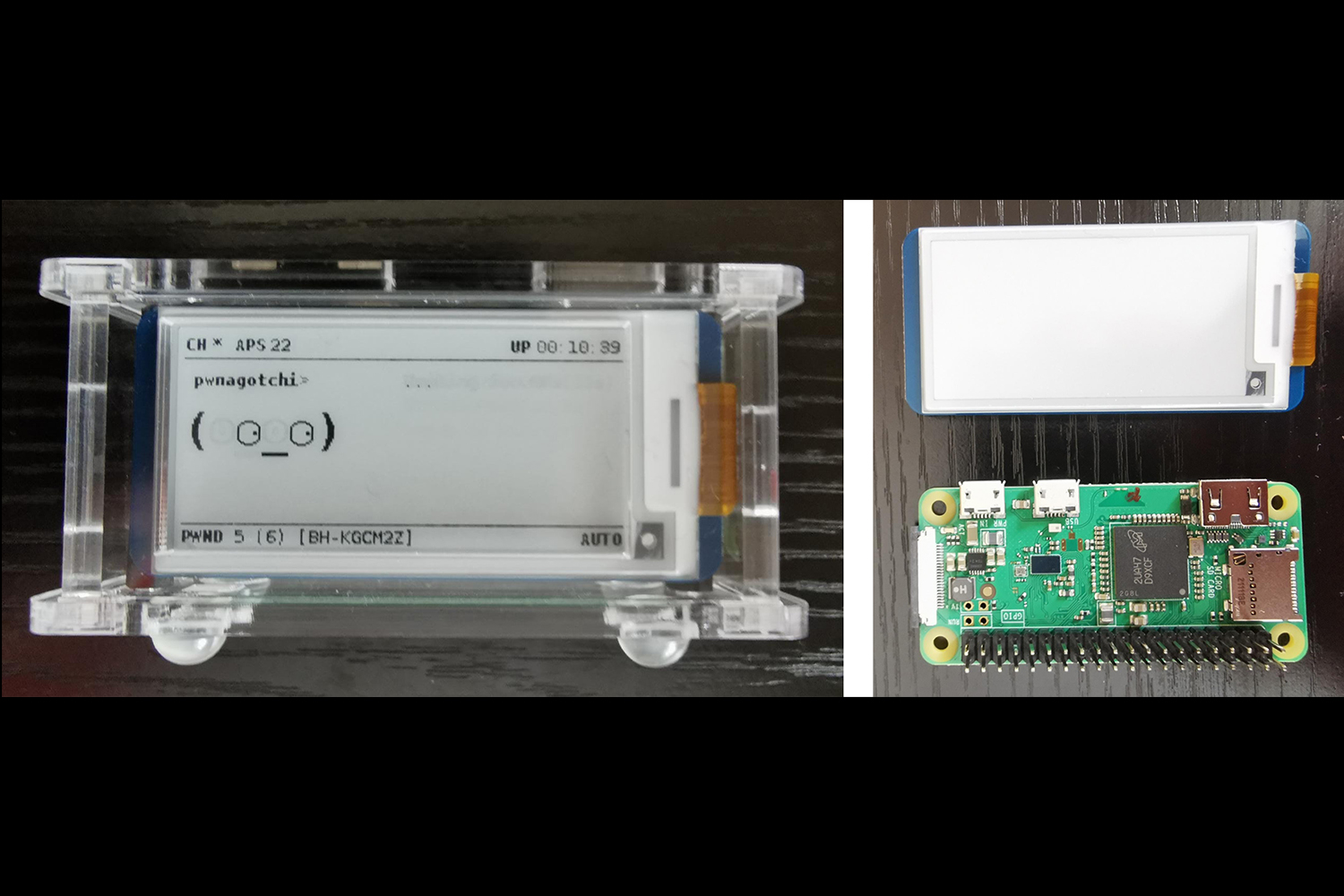
The Pwnagotchi is an AI-driven device that autonomously learns from and interacts with Wi-Fi networks. I built and configured the device myself, customizing its software, managing scripts, and optimizing its behavior to improve learning efficiency. This project provided hands-on experience with embedded systems, network analysis, and practical applications of machine learning in a compact, real-world device.
Project 2
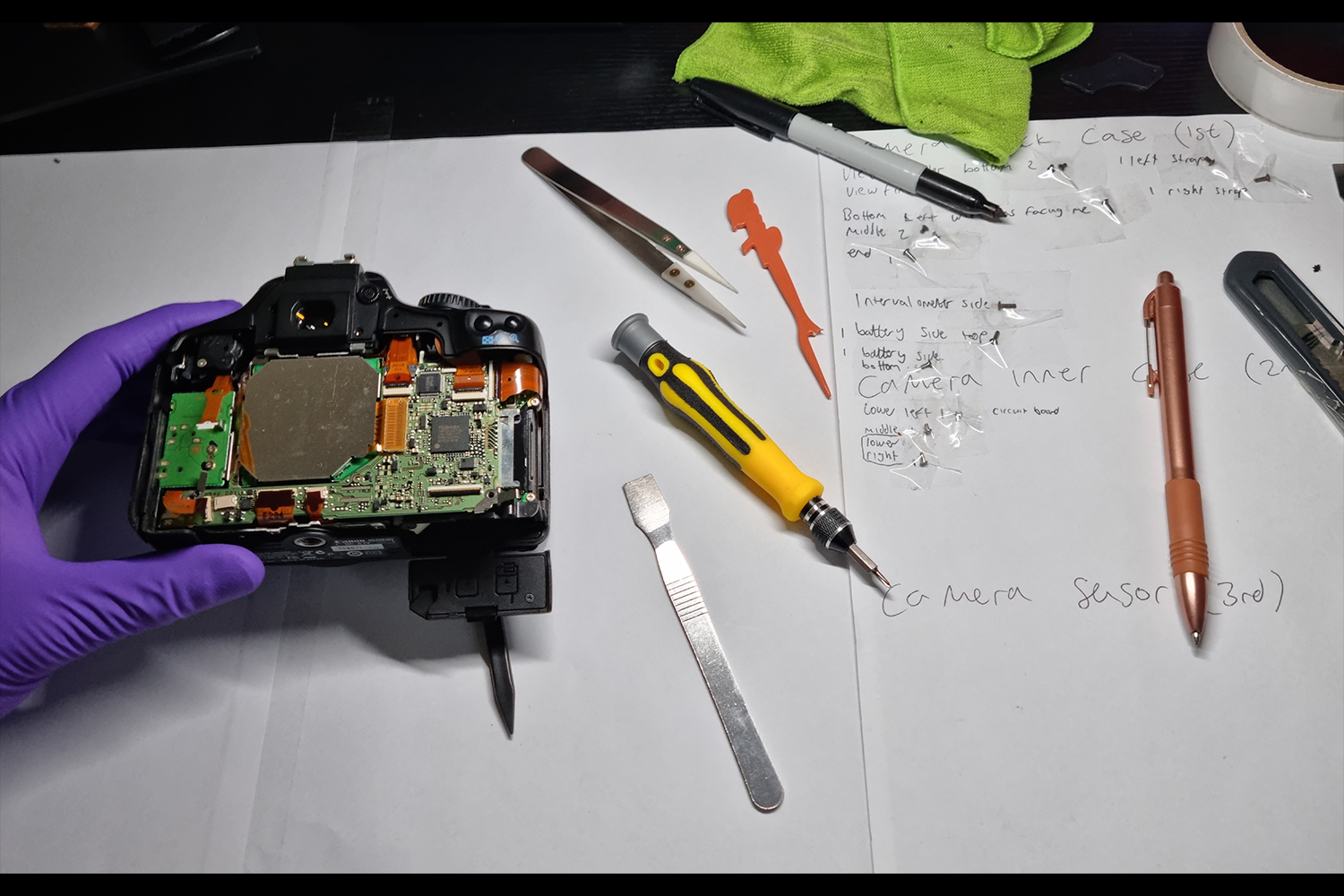

This camera modification involved converting a standard Canon EOS 450D into a full-spectrum camera by removing the internal filter that normally blocks infrared, ultraviolet, and hydrogen-alpha wavelengths of light. This modification was particularly useful for astrophotography, as certain nebulae emit strongly in hydrogen-alpha, and the original filter prevented these wavelengths from being captured effectively.
Project 3
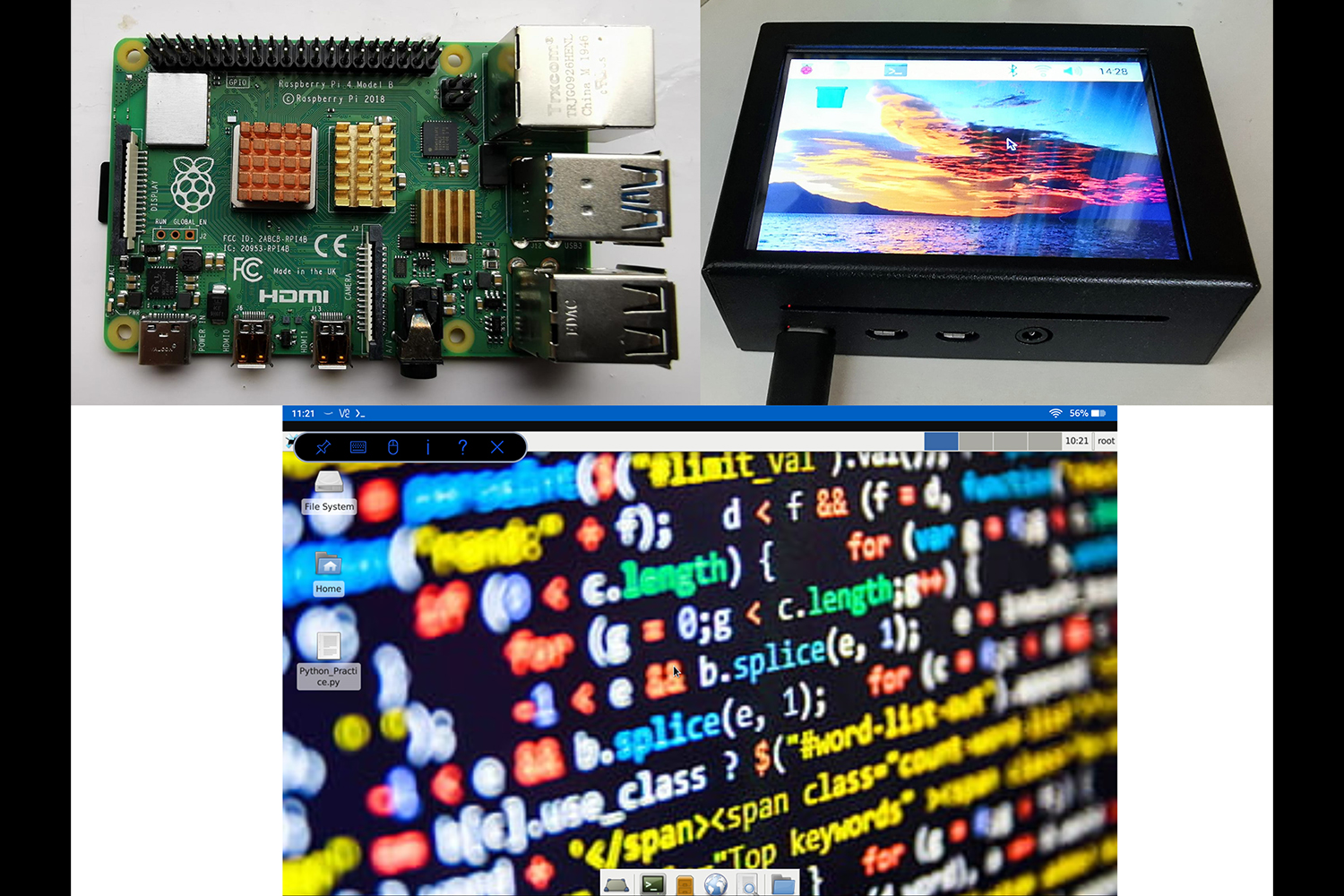
In this project, I built a portable, touchscreen Raspberry Pi 4 computer running a full Linux operating system. I installed and configured the OS, set up SSH to enable the touchscreen, and worked extensively with the command line to optimize functionality. This project provided hands-on experience with Linux systems, hardware integration, and practical troubleshooting in a compact, custom-built device.
▼ Blog ▼
Back to top

Camera Modification - 12/01/25

My most recent project has been modifying a Canon 450D for astrophotography.

Standard DSLRs block most of the hydrogen-alpha wavelength because it makes terrestrial photographs appear too red. Removing the H-alpha filter from a DSLR allows you to capture far more of the red light emitted by deep-space objects such as nebulae.

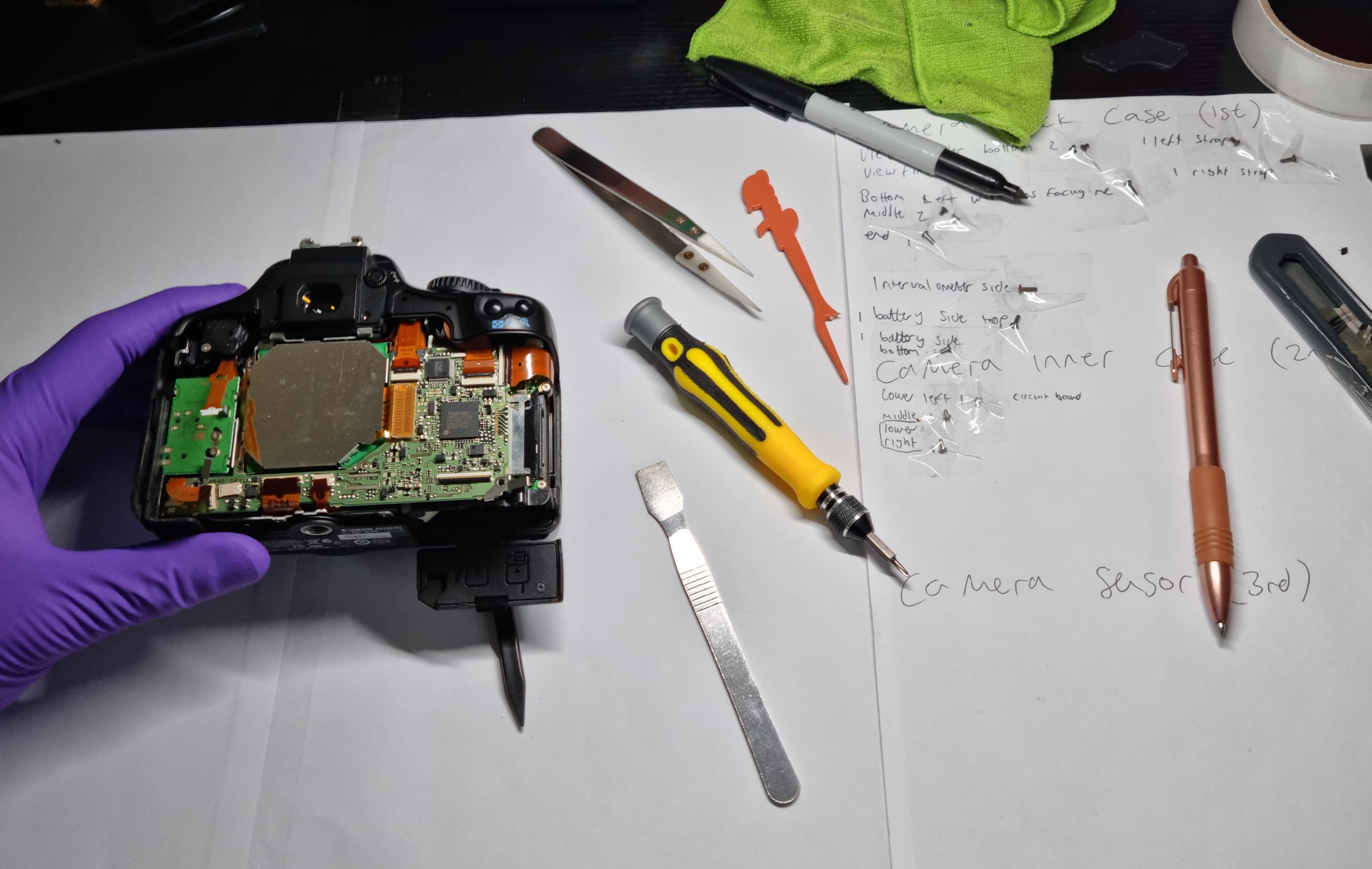
The modification was somewhat tricky, as the filter is not designed to be removed and sits directly over the camera’s delicate sensor. One particular screw was almost impossible to remove without a specialised tool that I unfortunately don’t own. To overcome this, I drilled a small hole into the camera body to access the screw and remove it with minimal damage.

Once the filter was removed, I carefully reconstructed the camera, ensuring all ribbon cables were seated correctly in their respective positions. I powered on the camera and the modification was a success. I’m now eager for a clear sky to get out and test it!

Thanks for reading,

Jack

Camera Modification in progress
Blog Image 1
Blog Image 1

Pwnagotchi! - 29/06/2023

I’ve just finished assembling my Pwnagotchi! I’ll start by letting ChatGPT give you a brief description of what a Pwnagotchi is, and what it does. Then I’ll run through the components I used and how I set it up.

ChatGPT: Pwnagotchi is an AI project that uses a small device to analyse Wi-Fi networks and learn how to crack passwords. It evolves and improves its hacking techniques over time by observing network data packets. However, it's crucial to remember that using it for illegal or unethical purposes is against the law.

Components:
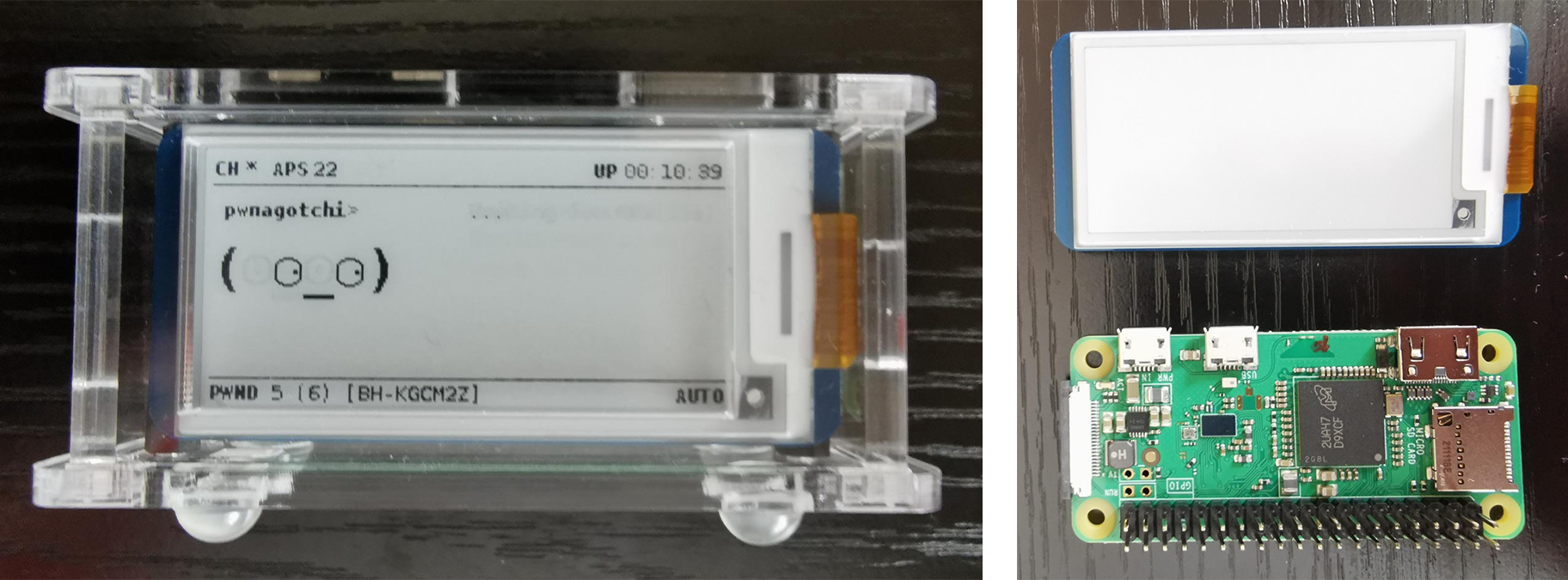
Raspberry Pi Zero WH
Waveshare 2.13” eInk Display
Pi Zero Case for Waveshare 2.13”
Micro-SD card

I began by downloading the PwnOS from GitHub, I then flashed it to the SD card using balenaEtcher. During the flashing process, I connected the eInk display to the General-Purpose Input/Output (GPIO) pins and assembled the case. Once the flashing was complete, I created a config.toml file in the boot directory of the SD card. This file allows customisation of various functions of the Pwnagotchi, including Wi-Fi scanning, network attacks, data collection, and display options. For now, my primary concern was the display property, I needed to set the Pwnagotchi’s output to my Waveshare eInk screen. After locating the ‘display’ property within the config.toml file, I changed it to 'waveshare_V3' and saved my changes. After saving the file, I ejected the SD card, inserted it into the Pi Zero, and plugged in the power supply.

I had read online that the first boot can take anywhere from 5-30 minutes. However, upon returning, I found that nothing had happened. The activity LED on the Pi was solid green, but the display remained blank. Seeking a solution, I turned to Pwnagotchi Subreddits and discovered that the Waveshare V3 had known compatibility issues with PwnOS. Fortunately, I found a patched version of the OS specifically for the V3 display and promptly downloaded and flashed it to the SD card. I also created a new config.toml file with suggested revised settings. After completing these steps, I plugged in the power supply again and, to my delight, the Pwnagotchi booted up successfully within about 5 minutes, with the eInk display functioning as it should.

I haven’t had time to test the Pwnagotchi or access the data it has collected on my Wi-Fi network just yet. Over the next few days, I’m going to do some research on how best to use my Pwnagotchi and how to setup a Secure Shell (SSH) to access the collected data. This was a fun project I’d been wanting to do for some time, which I would have got round to doing sooner had the Pi Zero WH been in stock!

Thanks for reading,

Jack

Pwnagotchi and Pi & eInk Display
Blog Image 1

Raspberry Pi Jellyfin Server - 15/06/2023

I’ve just finished setting up a Jellyfin media server on my Raspberry Pi 4. I followed a tutorial to set up a network shared folder to transfer my media files from my Windows PC to my Raspberry Pi’s mounted USB drive to be streamed on my network via the Jellyfin application.

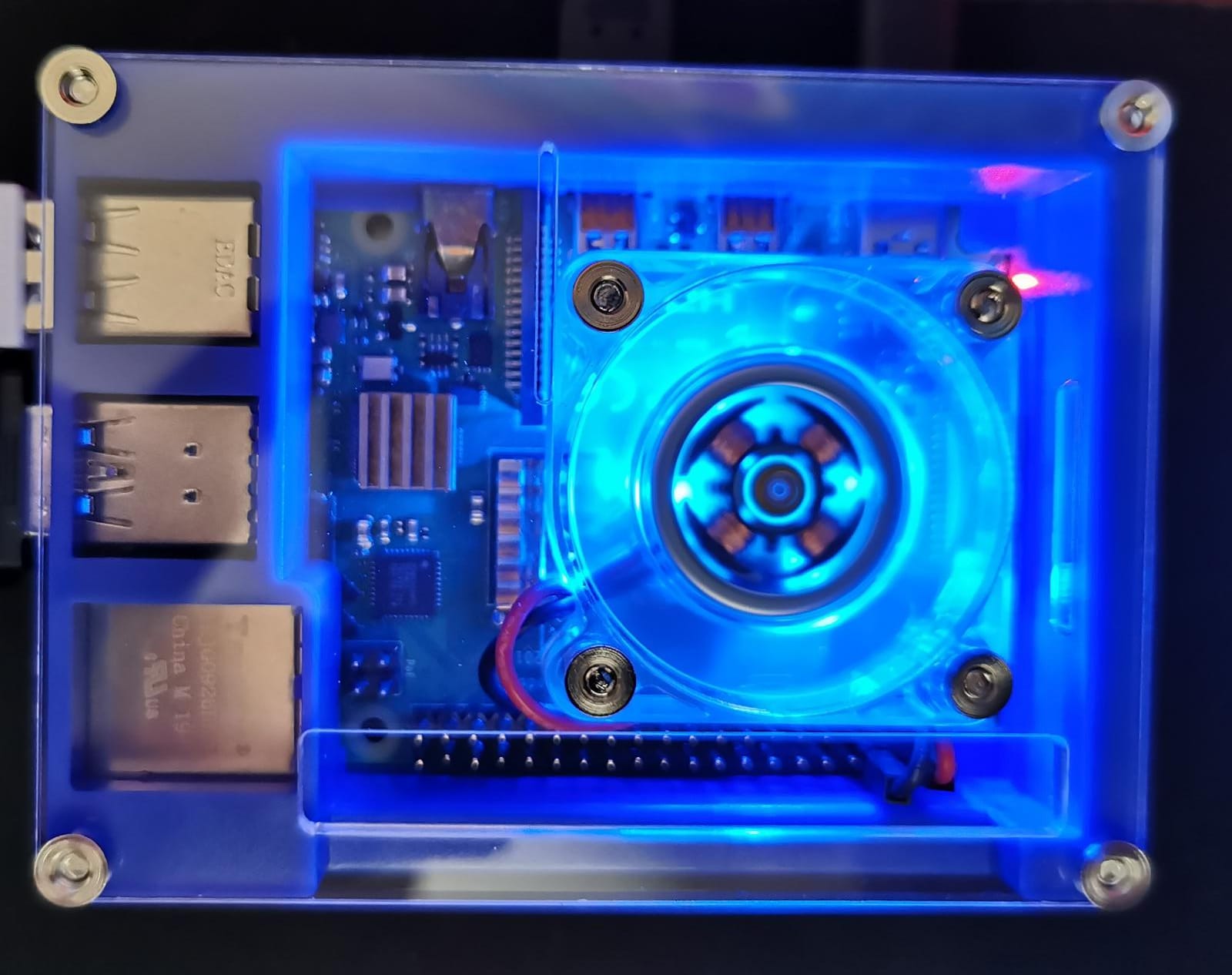
I ordered a 256GB USB drive for the media storage, and a new case and fan for the Pi as my previous one was getting noisy and had started to run hot. I also wanted to be able to turn the Pi on and off remotely, so the server doesn’t have to be always on. I plugged the Pi into a smart plug that can be operated from my phone allowing me to turn the Pi on remotely. I also downloaded an app for my phone that allows me to SSH into the Pi and use the shell to shut down the Pi remotely.

I ran into a few minor issues with the installation. Due to my lack of knowledge when it comes to Linux these trivial issues turned out to be rather time consuming. One such issue was formatting, renaming, and mounting the USB drive in the correct directory. The tutorial I followed didn’t include the steps to set up the storage device, so I used ChatGPT to assist me in getting the drive up and running.

Once set up, the Jellyfin application works seamlessly allowing me to stream my media over my network to any compatible device. The application scrapes movie and TV-show data such as: cover art, reviews, actors, and a lot more. I’ve had no issues with streaming on my relatively slow broadband connection and the GUI is like that of Netflix or Prime Video. I’m really impressed with Jellyfin and looking forward to testing it further over the next few days.

This project was a lot harder than anticipated but definitely a valuable learning experience. I have limited knowledge when it comes to Linux, but I enjoyed the challenge of getting familiar with using the shell to operate the system and get Jellyfin up and running.

Thanks for reading,

Jack

New RPi4 Case
Blog Image 1

Kano Computer Kit – 13/06/2023

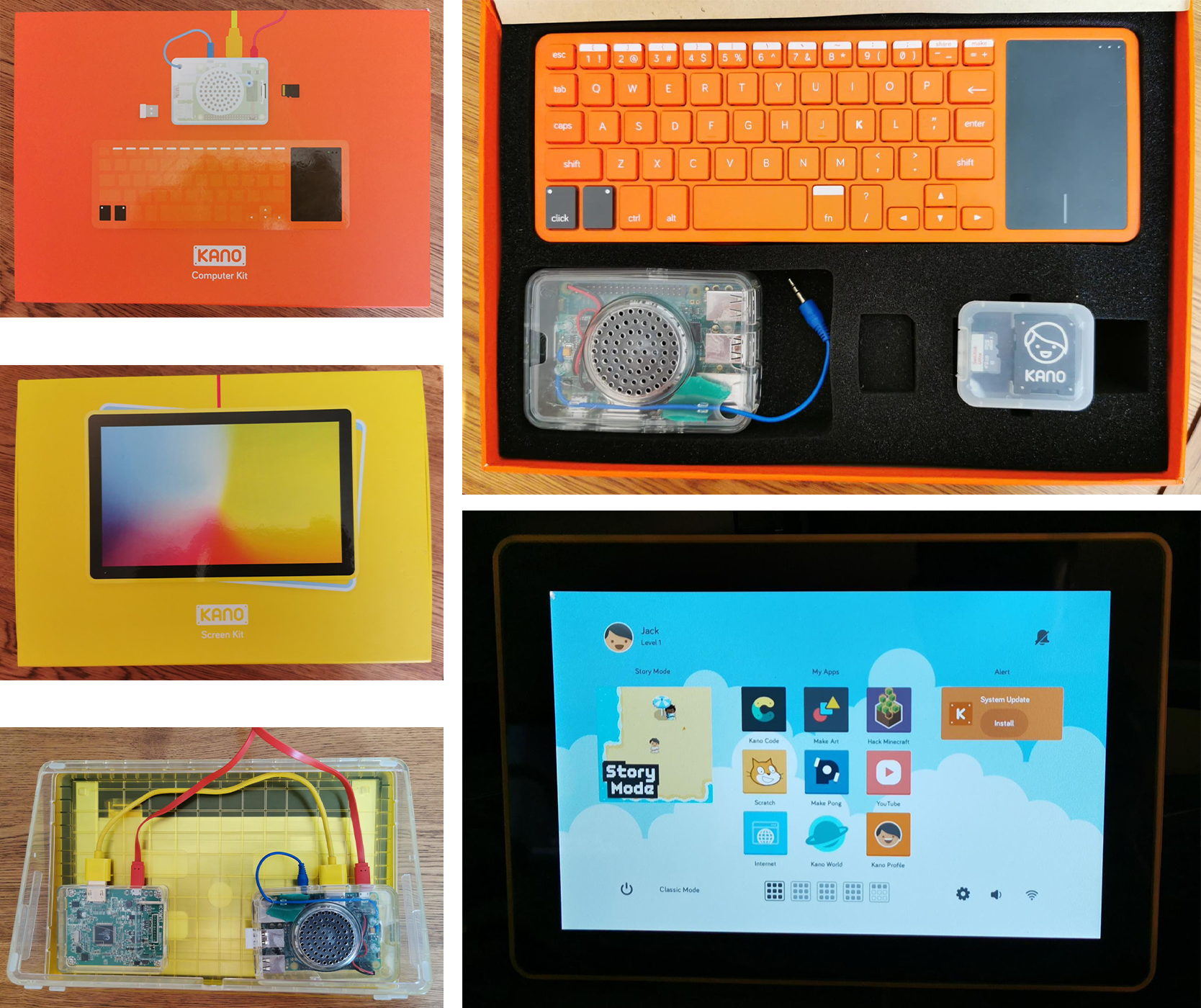
Recently, I was gifted a second-hand Kano Computer Kit and a Kano Screen. The kit comes with a Raspberry Pi3, a 10” screen, and wireless keyboard. Kano kits are DIY computer kits aimed at teaching children about building computers and computer programming. The kit comes with a micro-SD card with Kano OS pre-installed, this a child friendly Linux distro with a colourful and simple GUI. There are plenty of pre-installed learning applications suitable for various ages with the option to install new apps if required. My sons are too young to use the Kano kit for now, so I’ll be installing a different distro on there and using it as a mini-Linux computer.

Thanks for reading,

Jack

Kano Kit
Blog Image 1

ESP8266 Beacon Spammer – 21/05/2023

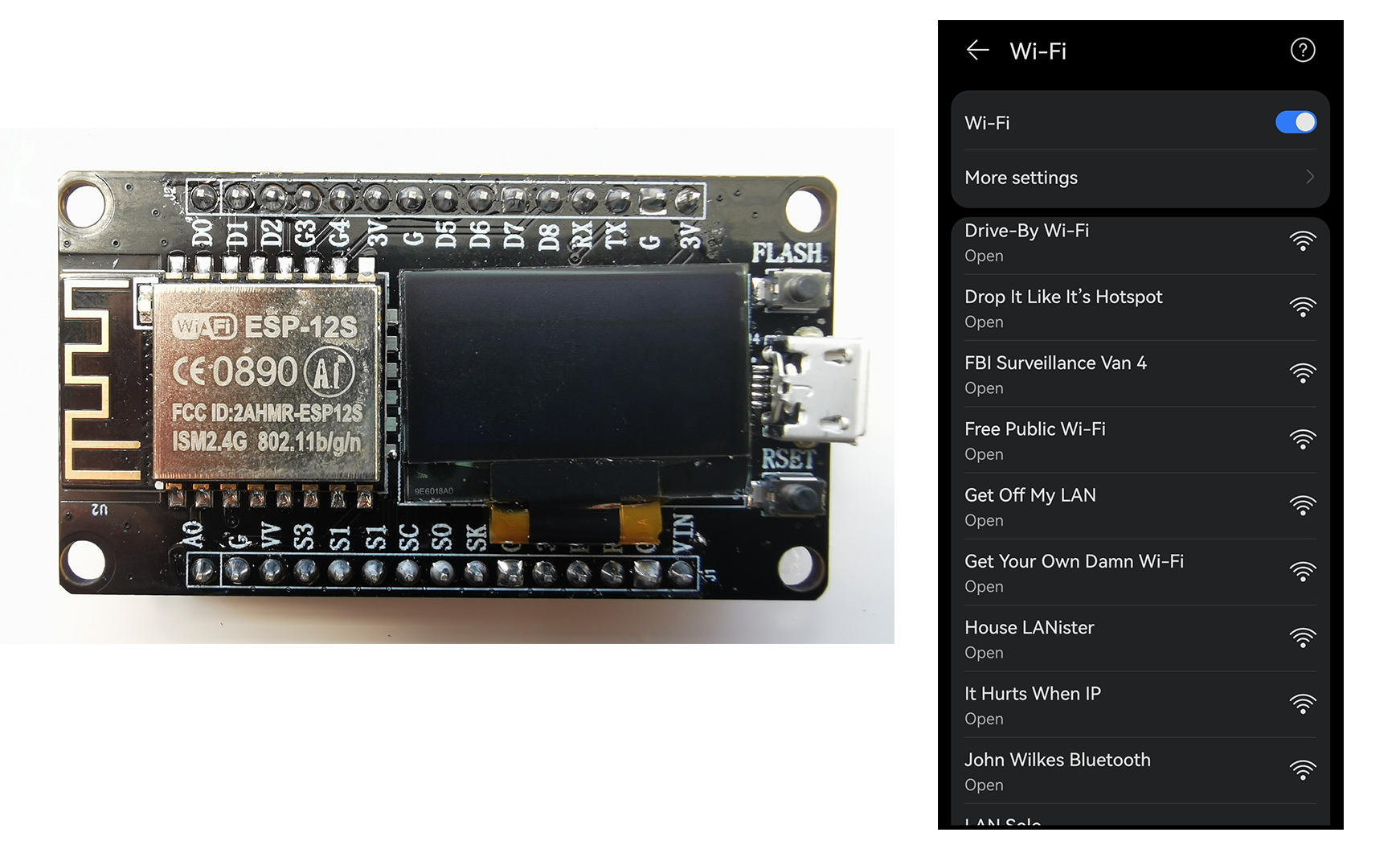
Yesterday I followed a tutorial to create a beacon spammer using a ESP8266 microcontroller. Once the device is set up, it runs a beacon spamming script that allows the device to create a set number of fake available Wi-Fi networks. Hackers may use this approach with the intention of tricking a user to connect to the fake network, once connected, the attacker may launch further attacks such as intercepting traffic or stealing sensitive information. For me it was just a cheap mini project and a party trick! I’ll be trying out some more hacks using the ESP8266 that will utilize the mini-OLED sometime soon.

Thanks for reading,

Jack

ESP8266 & Fake Available Networks
Blog Image 1

Update - 12/05/2023

I haven’t had a chance to update the blog for a few days, so I thought I’d do a quick post with an overview of what I’ve been working on with the game and some other little projects I’ve been tinkering with.

With regards to the game, I’ve been debugging and polishing the mechanics that are already in place before moving forward. The majority of my time has been spent on the fishing mechanic. I had an issue where the sprite animation would ‘pop’ my sprite back by a few pixels when the fishing animation began, this was quickly remedied by adjusting the pivot point of the sprite in the relevant frames. I also fixed an issue with the fishing UI box which was occurring when the player was no longer colliding with the fishing platform, instead of disappearing from view, the UI box would display itself with empty fields. This was solved by setting a new bool parameter within the animator and setting it to become true once the player had left the fishing platform.

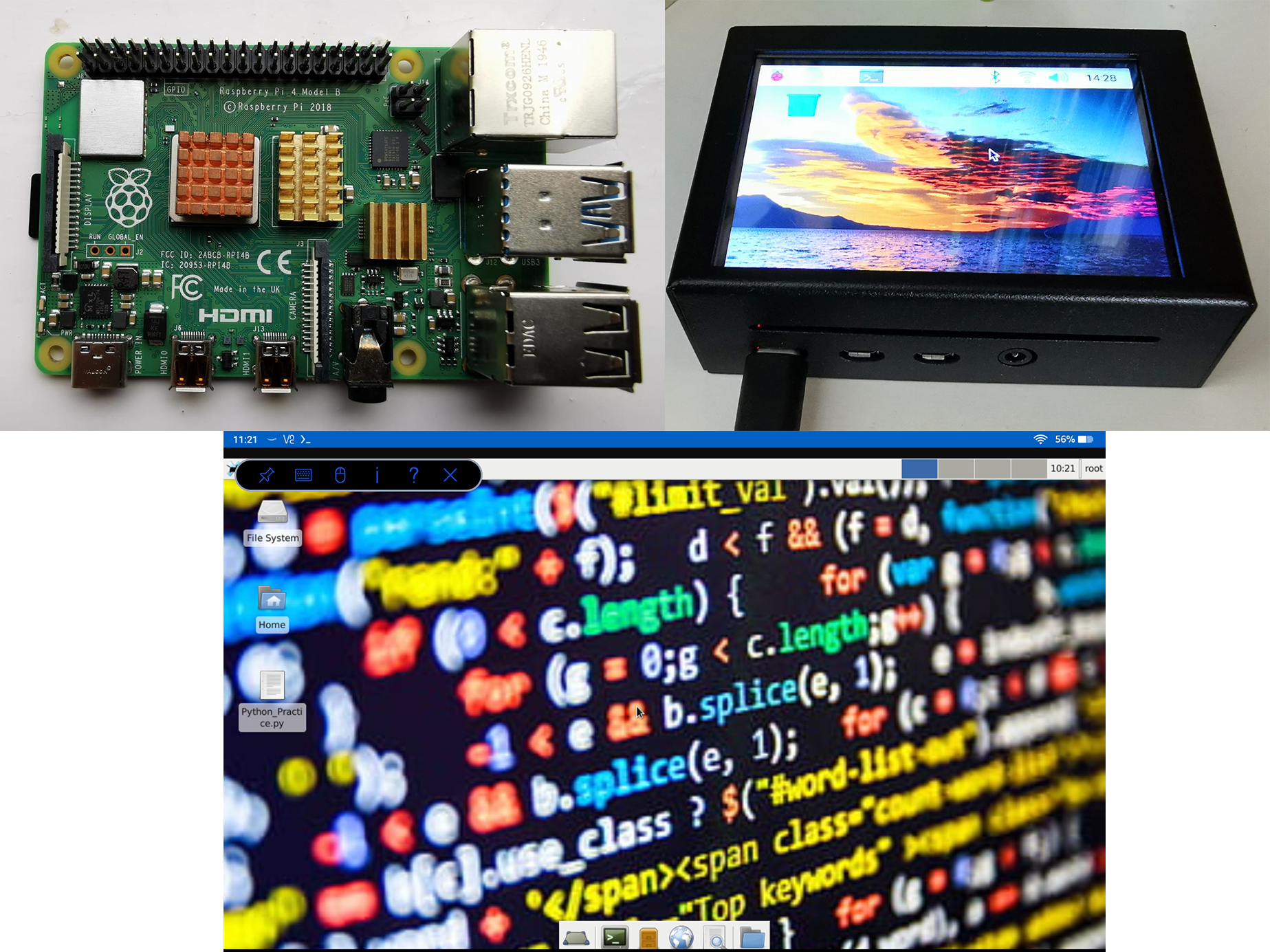
Yesterday I fitted a 3.5” TFT display to my Raspberry Pi 4B. This is eventually going to be used with a power bank and Wi-Fi adapter with packet injection and monitor mode for portable ethical hacking! I’ve included a few screenshots below of the Raspberry Pi 4B and the newly fitted screen.

I also installed Ubuntu onto my Fire HD 10 tablet! I was looking into getting a smaller laptop for practicing programming then I had the idea of running Linux on my tablet with a Bluetooth keyboard instead. Originally, I wanted to uninstall the custom firmware I was running on the Fire tablet and have Ubuntu as the main OS, but after a bit of googling I decided on a different approach. I used Andronix to install the Linux distro, Termux as the Android terminal emulator to interact with the Linux system, and VNC viewer for remote access and control of the Linux environment. It works incredibly well for simple tasks especially as the Fire HD 10 only has 3GB of RAM.

Thanks for reading,

Jack

Raspberry Pi 4B & Ubuntu on Fire HD 10
Blog Image 1

Anbernic RG350M Custom Firmware - 03/05/2023

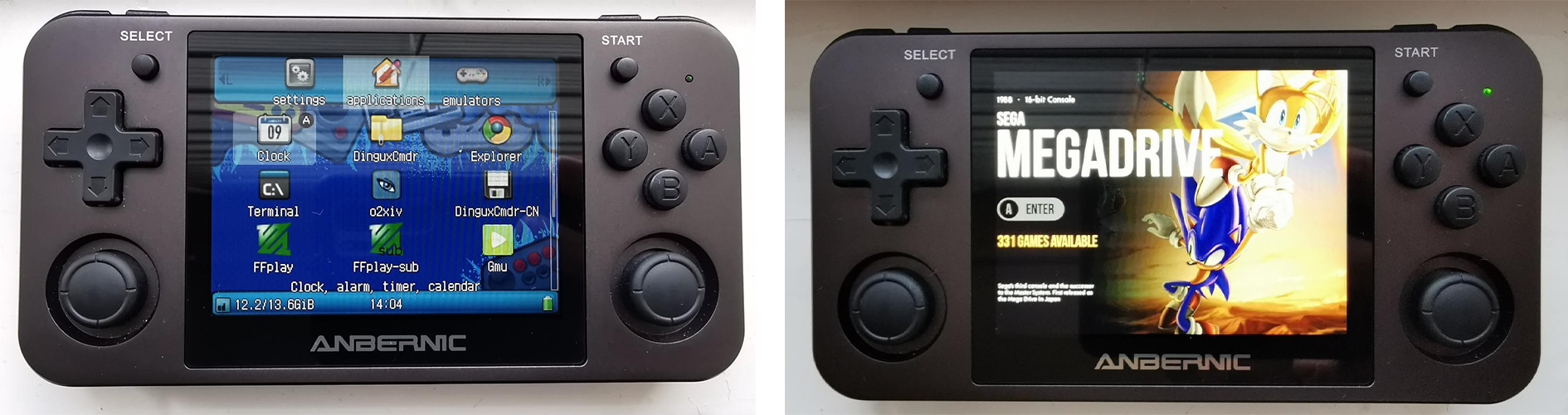
Today I installed a custom firmware on my Anbernic RG350M handheld retro emulation console. The stock firmware is shockingly bad, so I set about finding custom firmware (CFW) online. There were a few different options available, but I went with ADAM image as it runs OpenDingux beta firmware with RetroArch. I am somewhat familiar with the latter as on a previous project I installed RetroPie on my Raspberry Pi 4 and RetroArch is the emulator for RetroPie.

For the installation of the CFW, I formatted both micro-SD cards, then used a program called balenaEtcher to write the firmware image to the first SD card, once finished, I transferred all my ROMs (game files) from my computer into their relevant folders on the second SD card. Finally, once the firmware and ROMs had successfully been transferred, I used a program called Skraper to scrape (locate and download) the box art for the ROMs and then I was done!

I’ve attached two screenshots, the first showing the stock firmware, and the second the newly installed CFW. It’s clear to see the CFW is far superior with a beautiful, bright, GUI that is a pleasure to use. A far cry from the dated and disorganized stock firmware it was replacing. In total it took around 90 minutes to complete the installation, this included 45 minutes for the box art scraping. A small amount of time to invest for such a great reward. Right, I'm off to play some Zelda!

Thanks for reading,

Jack

Screenshot of Stock Firmware VS CFW
AnbernicStock

Digispark ATTiny85 Rubber Ducky - 26/04/2023

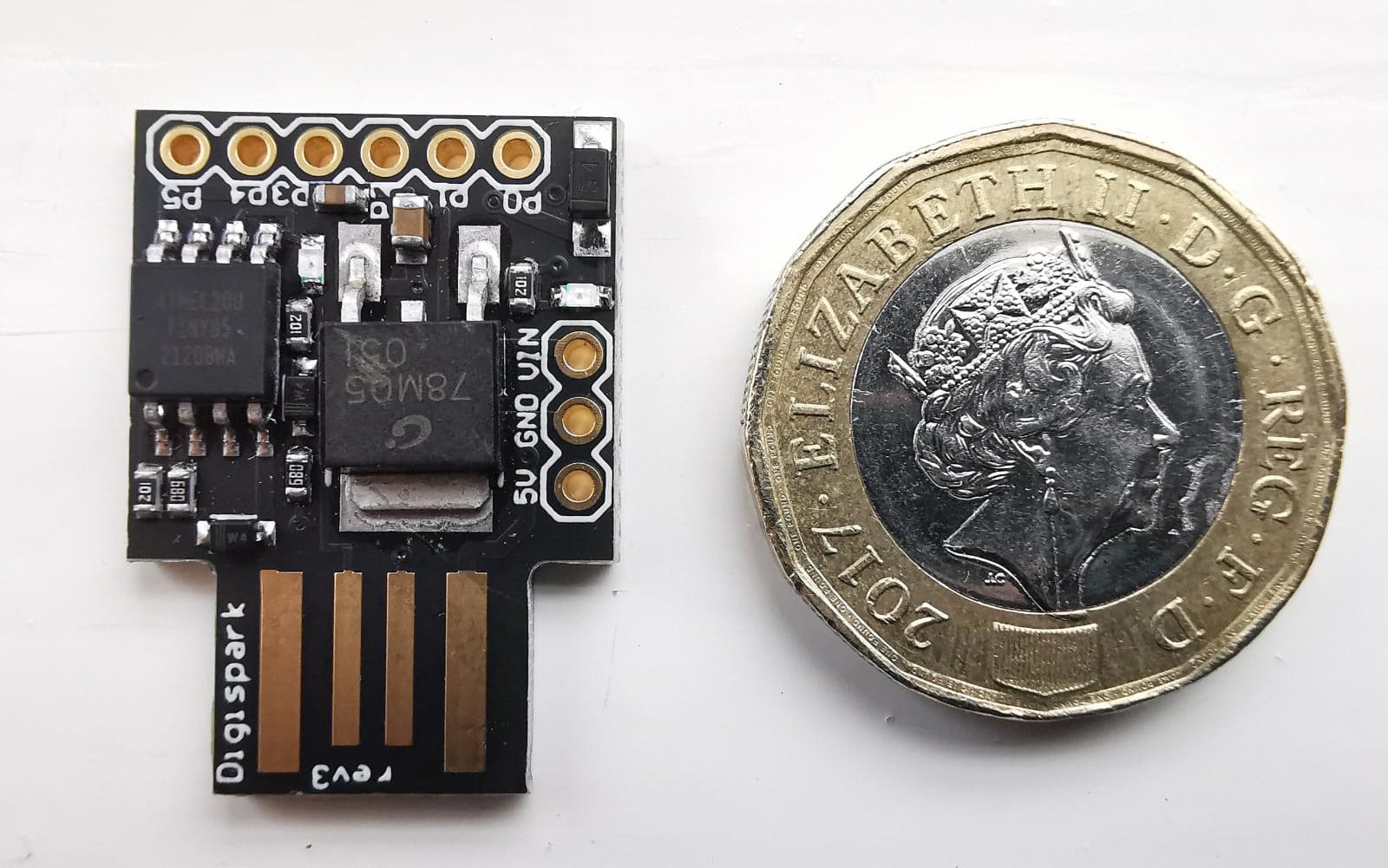
A few days ago, I found my Digispark ATTiny85 microcontroller in the back of one of my desk drawers. I purchased it after visiting a forum discussion on ‘bad USBs’ where one of the posters said you could pick one up on Amazon for around £3! What is it? The Digispark ATTiny85 is a small, exposed board microcontroller with a built-in USB connector meaning it can be programmed directly from a computer.

So, this morning I thought I’d finally get round to making my Rubber Ducky. Following along with a tutorial I installed the Arduino IDE and relevant drivers, found a Wi-Fi password stealer GitHub repo for the code, and used webhook.site for a temporary URL to receive the webhook data (in this case: Wi-Fi password). All-in-all it took around half an hour for the rubber ducky to be complete and functioning flawlessly. Rubber ducky’s are designed to look like regular USBs. However, instead of storing data, they contain a small computer which emulates a keyboard when plugged into the target device, the computer assumes all is well as it is used to receiving information from the user via the keyboard. Once plugged in, the malicious script will be executed to access and send the targeted sensitive data to the hacker.

Hacking projects mentioned on my blog will never be used maliciously, I test them on my own devices and networks only.

Thanks for reading,

Jack

Image of My Digispark ATTiny85 Next to a £1 Coin
Blog Image 2